

Dashboard Introduction
- Support Difficulty
- ★☆☆☆☆
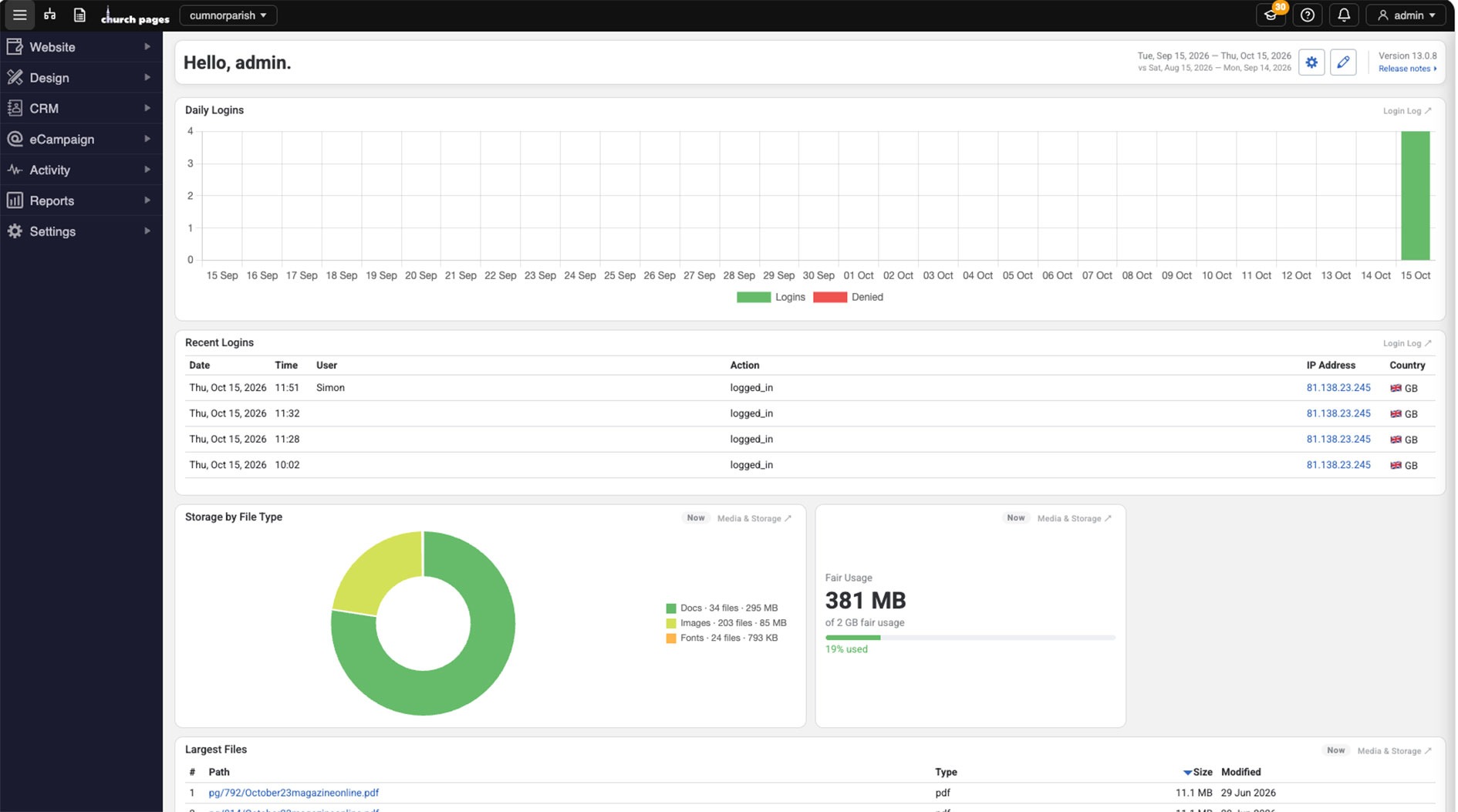
Dashboard: A dashboard is a content hub on a website that gives access to different elements of the site's functionality
The Dashboard is the first page that you'll see when you log into the admin area of your website.
The Dashboard provides information on:
- daily logins to the admin area
- recent logins
- your media usage, and
- your largest files.
What can I access from the Dashboard?
From the Dashboard you can:
1. Access your content for editing
To access your content you will need to select the tree icon:
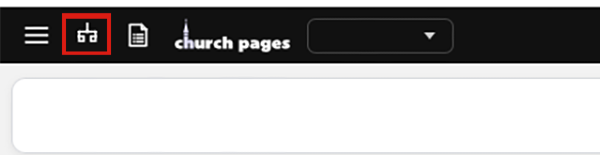
Clicking on this will enable you to see all the folders and pages in your website:
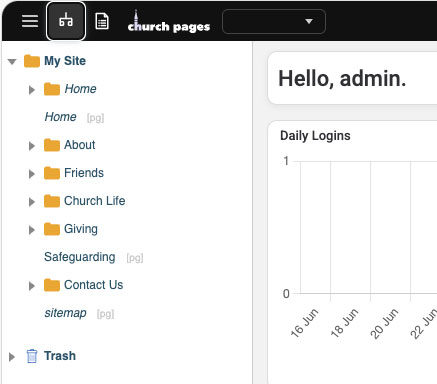
Click on the folder or the page that you wish to edit and then your folder or page will appear to the right of the nav. Our Editing Content section will help you to make changes on your site.
2. Access ATTRIBUTES, Contact Form Data, and MATOMO STats
To access this area you need to click the hamburger icon:
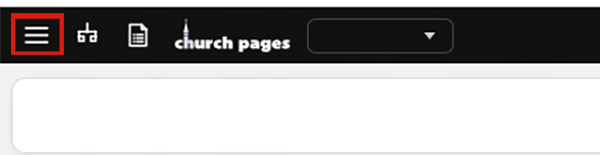
Clicking on this will enable you to see all the different areas of your website, depending on the access that you have been given.
If you have owner access you will find:
- your attributes - found under Website > Attributes
- contact form data - found under Activity > Contact Form Data > Select Contact Form > Search
- Matamo web stats - found under Reports > Website Reports > Matomo Reports. Here you can click on a box and see a summary, or alternatively click the box View on Matomo to be taken to your web stats.
- Your automatically generated Contact Form emails - found under Settings > My Automations.
5. Your Account
Your account details can be accessed by clicking on Your Account at the top right hand corner of the screen - it will show your Username. Here you can:
- change contact details
- view your account balance
- change your password
- add in 2-factor authentication, and
- edit your timeout limit.
We have also included quick links below that provide further information on the dashboard.